Docs
Checklist Organizer
Home/My Checklists
Every checklist you own or collaborate on lives in one table — filter by status and jump straight back into whatever stage you left off at.

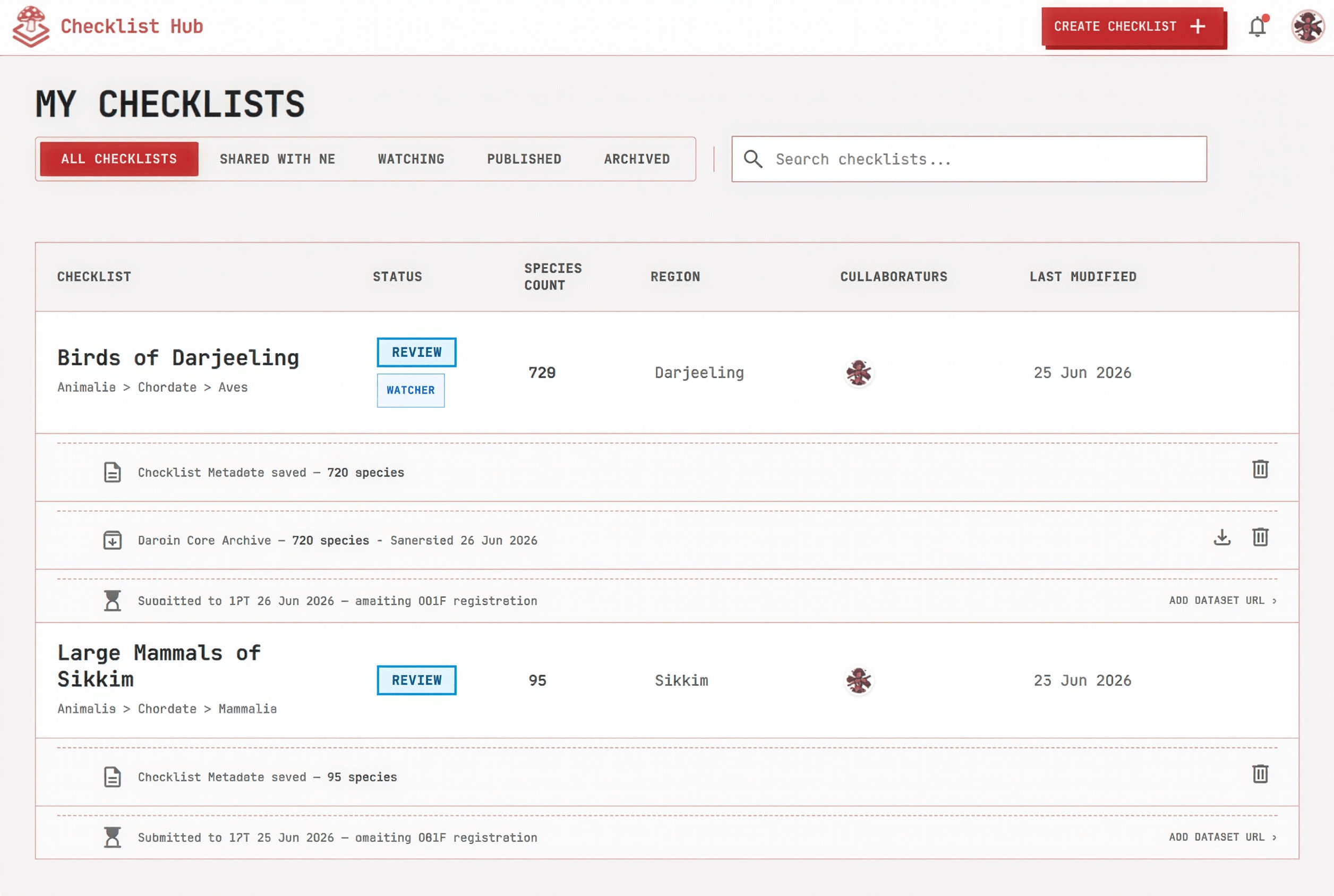
Click a step below to see it highlighted in the screenshot.
- 1
Filter by status
Tabs for All Checklists, Shared with Me, Watching, Published, and Archived — filtered instantly, no reload.
- 2
See state at a glance
Status pills (Draft, Validating, Reviewing, Published, Archived) and a Watcher badge show a checklist's state at a glance.
- 3
Manage the team
A collaborator avatar stack shows everyone with access, including pending invites, with one click to manage the team.
- 4
Resume a publish
Unfinished publish steps — saved metadata, a generated Darwin Core package, a submission awaiting GBIF registration — surface as inline rows so you resume exactly where you stopped, without redoing the wizard.