Docs
Workbench
Checklists/Workbench
The Workbench is where a checklist gets built, one species at a time. Every collaborator works from the same screen, and a species can't reach the published list until at least one collaborator has accepted or rejected its row.
The screen has three parts: a table in the middle listing every species, a sidebar on the left for finding and managing rows, and a panel on the right that opens up when you click into one. This page walks through all three.
1. The Main Table
Every species on the checklist gets its own row. Read left to right and you've got everything needed to make a call on it, without opening anything.

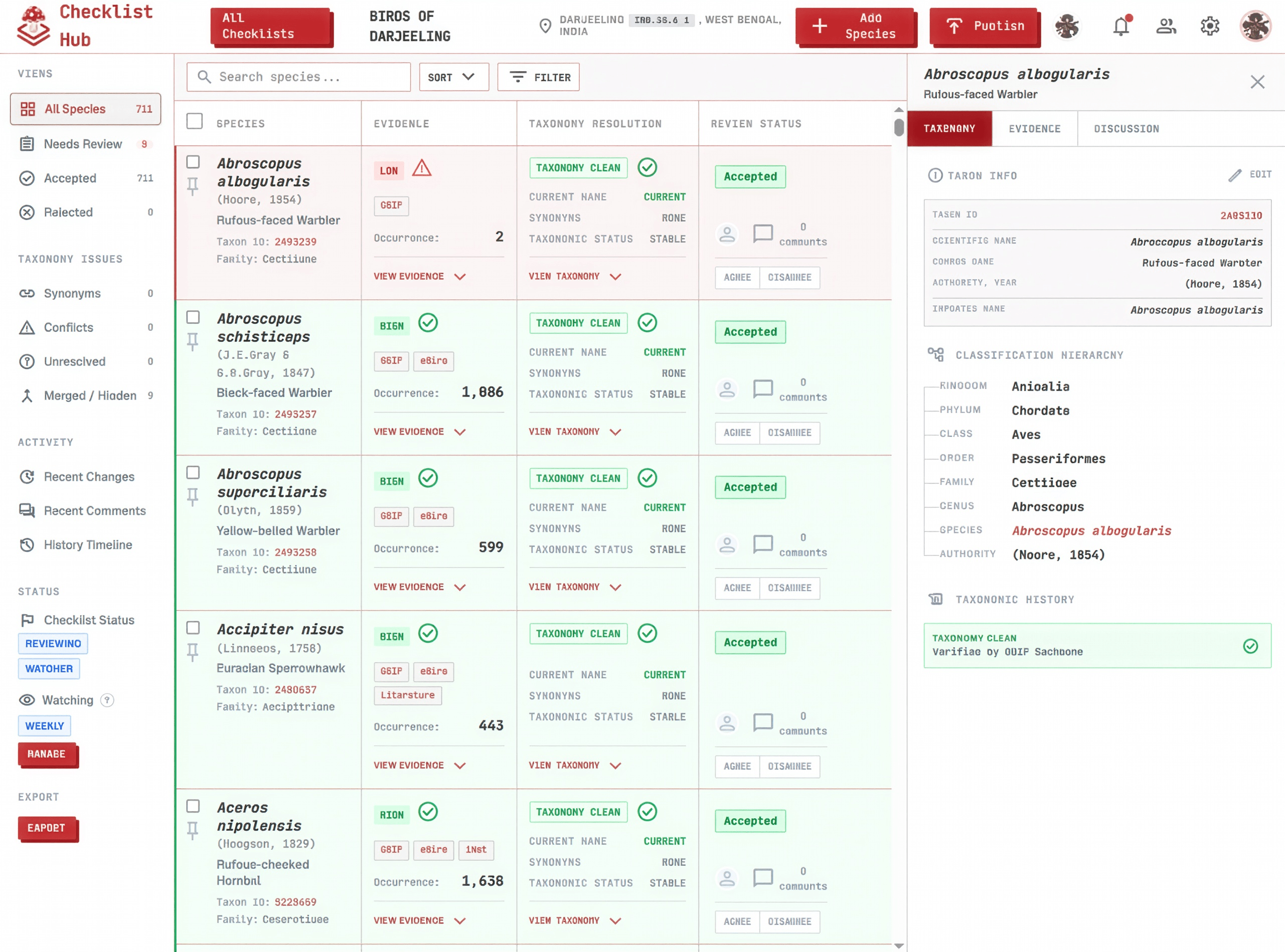
Click a step below to see it highlighted in the screenshot.
- 1
Species
The scientific name and author come first, with the common name underneath. The taxon ID below that links straight through to the matching record on the GBIF Backbone, so you can check it against the source of truth in one click.
- 2
Evidence
A Low, Medium, or High badge, built from a score: literature and eBird records count for more than GBIF or iNaturalist records, a source with a lot of occurrences scores higher, and having more than one independent source counts for extra. Six points or more is High, three to five is Medium, under three is Low. Click the badge to see the breakdown.
- 3
Taxonomy Resolution
A row marked "Taxonomy Clean" matched the GBIF Backbone with no issues. Anything else, a synonym, a name two sources classify differently, or a name that never matched, is flagged right there in the row. You see a conflict at a glance, without digging for it.
- 4
Review Status
Accepted, Rejected, or still open. A row stays open until at least one collaborator makes the call, and every comment or agree/disagree on it is counted right in the column, so you can see which rows still need a voice.
2. The Left Sidebar
The sidebar doesn't hold extra data. It slices the same table you just saw, so you're always looking at fewer rows, not different ones.
Click a step below to see it highlighted in the screenshot.
- 1
View mode
All Species, Needs Review, Accepted, and Rejected filter the table by review status. Accept or reject a row and it jumps to the matching view immediately, so there's no separate list to keep in sync by hand.
- 2
Taxonomy status
Synonyms, Conflicts, Unresolved, and Merged/Hidden filter the table by taxonomy status instead. Each one is there because a row needs a decision: a synonym to confirm, a conflict between sources to settle, a name that didn't resolve, or a past merge to review.
- 3
Activity
Recent Changes, Recent Comments, and History Timeline log every status flip, taxonomy vote, merge, and comment across the whole checklist, so a decision made months ago is still traceable back to who made it. See Features → History for the full breakdown.
- 4
Watcher
Turn on the Watcher and Checklist Hub keeps checking GBIF, iNaturalist, and eBird for this checklist on a schedule, even after you've moved on. See Features → Watcher for the full walkthrough.
- 5
Export
Pull whatever's currently visible in the table out as a spreadsheet, independent of the formal publish flow. See Features → Export for the full field list.
3. The Right Panel
Click any row and the right panel opens for that one species, with three tabs: Taxonomy, Evidence, and Discussion.
Click a step below to see it highlighted in the screenshot.
- 1
Taxonomy
The species' photo, when one is available, sits above its full classification, kingdom down to species. Start typing a correction and Checklist Hub suggests matches straight from the GBIF backbone. Pick one and the whole hierarchy updates with it.
- 2
Evidence
A map of the checklist's region with every occurrence point plotted on it, colored by source. See Features → Evidence for the full breakdown.
- 3
Discussion
A comment thread for this species alone. Tag a collaborator with @ or another species with # when a decision needs a second opinion. See Features → Collaboration for the full breakdown.
Merging Duplicates
Two sources can pull in the same species under slightly different names. The Workbench catches it before you do the deleting.
Click a step below to see it highlighted in the screenshot.
- 1
Flagged before you save
When a correction matches a name already in the checklist, Checklist Hub flags it as a duplicate before you save. The fix becomes a merge instead of two separate rows.
- 2
Non-destructive
Merging is non-destructive: evidence, comments, and history from both rows carry over onto the surviving row, and nothing is deleted outright.
- 3
Reversible
Merged rows don't disappear. They move to the Merged/Hidden view, so the decision stays visible and reversible.